Feeding is a choice.
The philosophy is simple. The practice takes a few sessions to feel natural. Here's both.
The four steps
Most online sessions start with the feed. The platform decides what you see, how you feel, and how long you stay. By the time you remember why you came, twenty minutes have gone.
Don't Feed Me inverts the order. The feed becomes the last step, not the first. You arrive, you do what you came for, and only then — if you still want it — you choose to feed for a fixed time, and you leave.
Open the platform. Where the feed used to be, Grem is sitting quietly. The page loads instantly without the algorithm trying to grab you.
Do what you came for. Reply to a message. Post the thing. Search for something specific. Read a profile. Watch a video you already chose. Everything except the feed still works exactly as before.
If you want to scroll, click the extension icon and pick 15, 30, or 45 minutes. The feed comes back for that long, then disappears again. Stop early any time.
Close the tab. The default state is no feed. Tomorrow when you arrive, Grem will be sitting in the same place.
Feeding is something you choose, not something that happens to you.
Using the extension
Pin Grem to your toolbar (first time only)
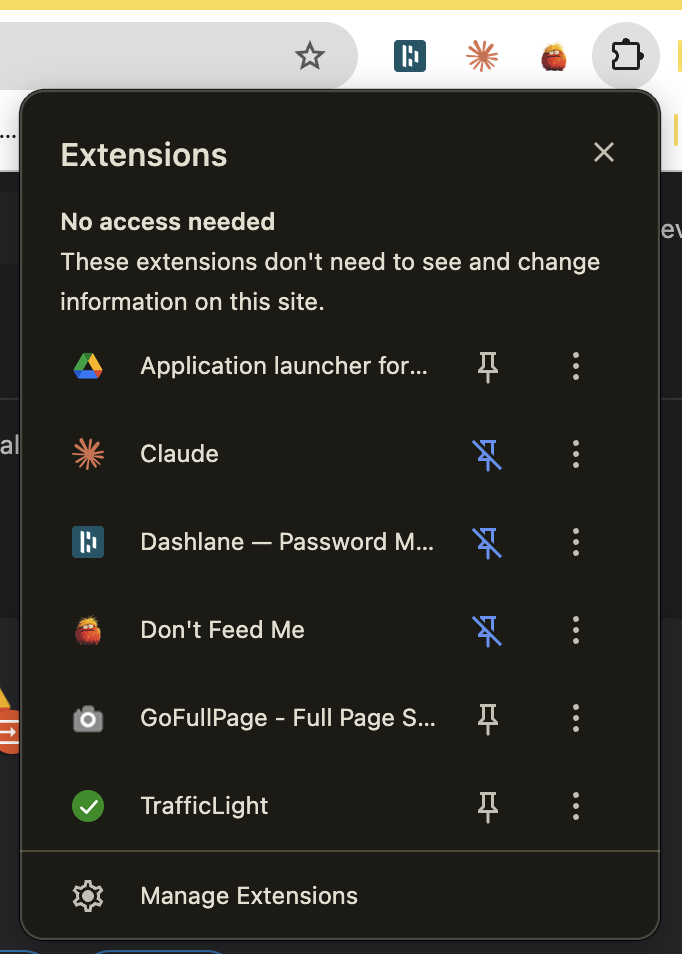
Chrome hides new extensions behind the puzzle icon by default. To make Grem easy to find, you'll want to pin it once.
Click the puzzle icon (top-right of Chrome, next to your profile picture). A list of your installed extensions appears. Find "Don't Feed Me" and click the pin icon next to it — the pin will turn blue and Grem will appear in your toolbar permanently.
The popup
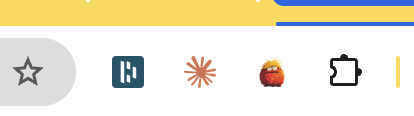
Once pinned, the Grem icon sits in your toolbar near the bookmark star. Click it to open the popup.
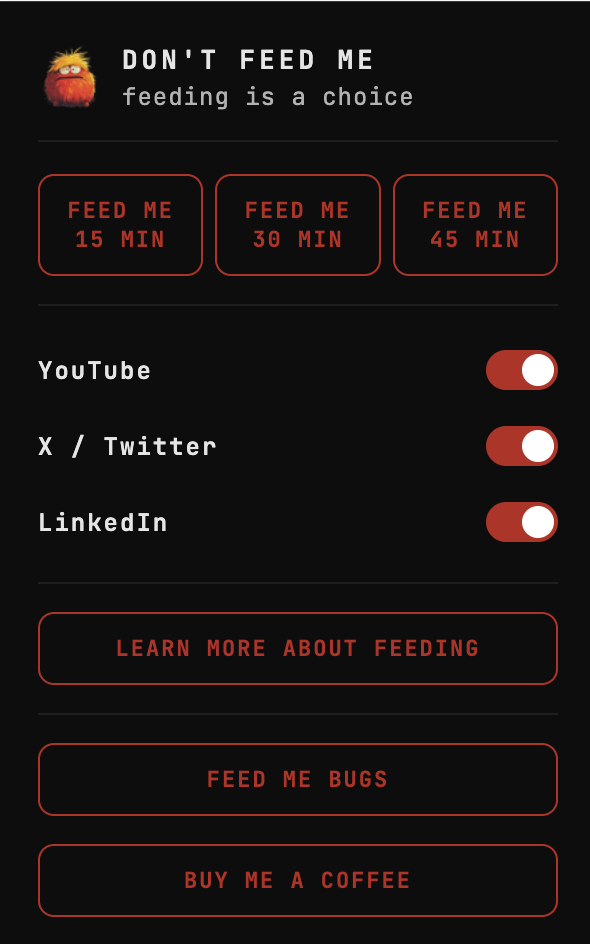
The popup has three Feed Me buttons (15, 30, 45 minutes), three platform toggles (YouTube, X, LinkedIn), a Learn more link, and a place to report problems.
Starting a feed
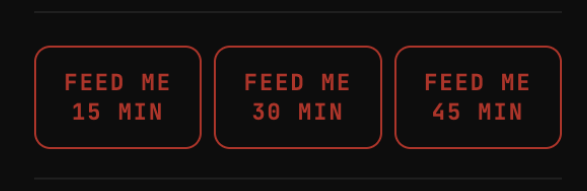
Click one of the Feed Me buttons.
You'll get a confirmation. Click "Feed me" to confirm, "Not yet" to cancel.
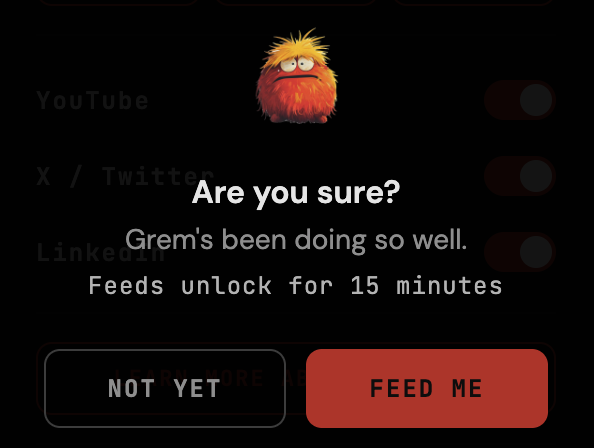
A countdown begins. The feed is restored on whichever platforms you have toggled on. When the timer ends, the feed disappears and Grem returns automatically.
Stopping early
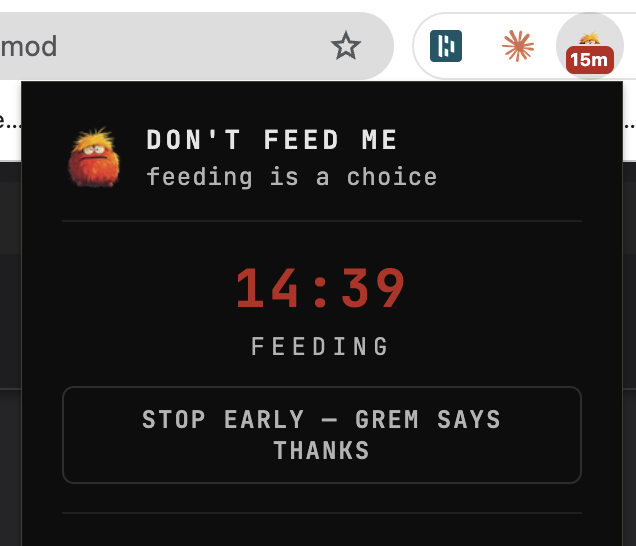
While a feeding session is running, the popup shows the timer and a "Stop early — Grem says thanks" button. Click it and the feed disappears immediately on every active platform, regardless of how much time was left.
Per-platform toggles
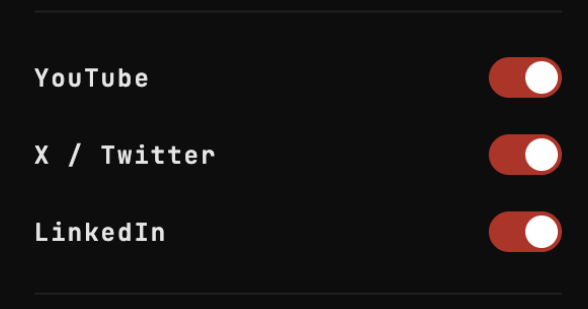
If you only want Don't Feed Me active on, say, LinkedIn but not YouTube, use the toggles in the popup. Each platform can be turned on or off independently — your settings sync across devices when you're signed into Chrome.
Reporting problems
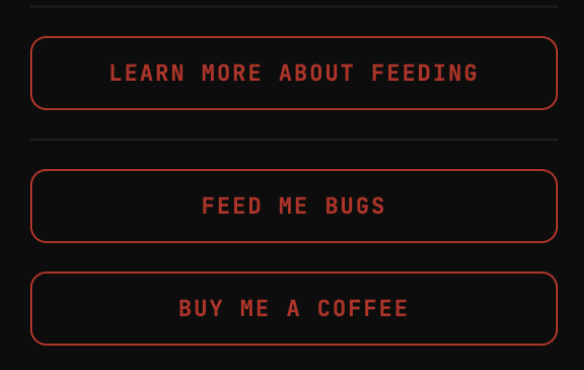
Platforms change their UI constantly. If something breaks — Grem disappears, the feed comes back, anything looks off — there's a "Feed me bugs" button in the popup. I monitor things weekly and push fixes when they break; reporting helps me find new issues faster. You can also use the bug form on the website if you'd rather not use the extension popup.
Tips per platform
YouTube
Your Subscriptions page is your real curated feed — the homepage is what the algorithm chose for you. Want to discover new things? Hit Feed Me and give yourself 15 minutes. Don't browse the homepage on autopilot.
X / Twitter
Only the "For You" tab is blocked. The "Following" tab still works — that's the people you actually chose to hear from. Notifications, search, replies, posting, profiles, lists, all work normally. Hit Feed Me when you want to dip into the algorithm.
Post. Message. Check profile views. Look at jobs. Reply to comments. When you want to see what your network is up to, hit Feed Me and give it a window. Most LinkedIn sessions don't need the feed at all.
The bigger idea
Most attention-management tools rely on willpower. They lock you out, shame you, count your minutes, gamify your restraint. Don't Feed Me does none of that. It just inverts the default.
You are not blocked from the feed. You can feed any time you want, for as long as you want, on every platform. The only thing that's changed is the order. The feed is not the entry point. It's a decision you make, deliberately, after the work is done.
You can't out-willpower a UI that's been optimised by thousands of engineers against billions of eyeballs. We are cats with laser pointers. So the laser pointer's default position changes — off until you ask, not always on.
Willpower doesn't beat design. So the design changes.